
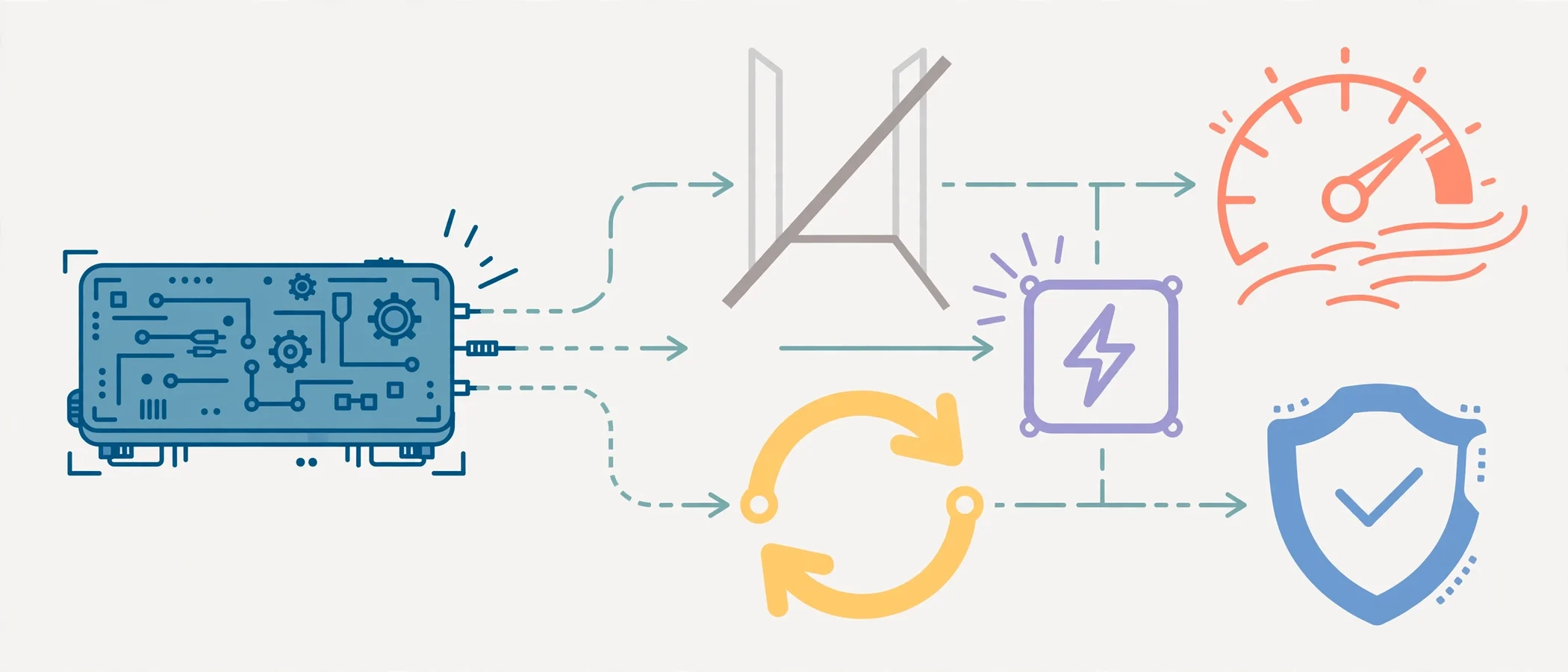
An effective remote executive assistant work setup combines a secured identity and access layer, a unified calendar-email-communication stack, a shared task and knowledge system, and an ergonomic, low-latency physical workspace, all governed by documented delegation protocols. This architecture lets a remote EA triage inboxes, orchestrate cross-timezone scheduling, and execute deliverables with enterprise-grade reliability and zero context loss. Configure the stack around the executive’s workflows first and the assistant’s preferences second, and response time, accuracy, and data security improve together.
To see how this setup works inside a managed engagement, explore dedicated virtual executive assistant services with structured onboarding and tooling built for executives who need results from week one.
What Is a Remote Executive Assistant Work Setup?
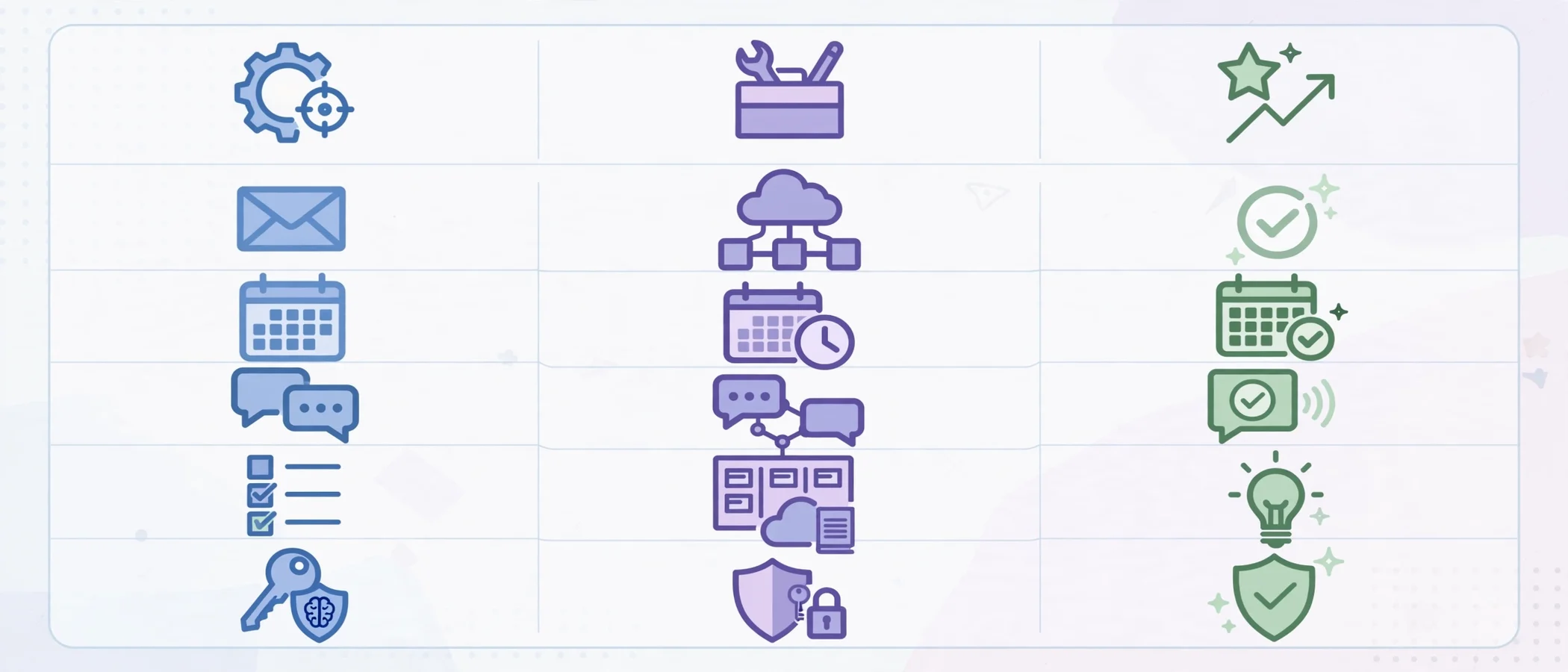
A remote executive assistant work setup is the combined set of software, security controls, hardware, and working agreements that lets an executive assistant support a leader from any location. It covers four layers:
- Identity and security: password manager, multi-factor authentication, and delegated access.
- Core productivity stack: email, calendar, chat, video, and file storage.
- Operations tools: task boards, shared knowledge base, CRM, travel, and expense systems.
- Physical workspace: ergonomic desk, reliable internet, audio, and backup power.
In short, the setup is the operating system of the role. A strong assistant with a weak setup loses hours to friction. A strong setup turns the same assistant into a reliable extension of the executive.
Quick Answer: What Does a Remote EA Need?
- A fast, stable internet connection with a backup option
- A secured laptop and a second monitor
- A password manager with multi-factor authentication
- Delegate access to the executive’s email and calendar
- A shared task board and a living playbook
- A noise-isolating headset and a clean video background
Why the Setup Decides Performance
Remote work removes the hallway. An EA can’t lean over and ask a quick question, so the system must answer it first. Consequently, the quality of your tools and documentation sets the ceiling on speed and accuracy.
A well-built setup delivers three things:
- Speed: Faster triage, fewer app switches, and shorter turnaround on requests.
- Continuity: Any approved person can pick up the work because context lives in shared systems, not in someone’s head.
- Trust: Executives share sensitive information more freely when security is visible and consistent.
Moreover, a clear setup reduces the hidden cost of onboarding. Many leaders underestimate how much of a new EA’s first month goes to tool access and process questions. If you want to see what a prepared candidate looks like, the checklist executives use when hiring a virtual EA at the C-suite level includes tool proficiency as a screening point.
The Core Remote EA Tech Stack at a Glance
The table below maps each function to the tool category, example tools, and the outcome it protects. Choose the examples that match the executive’s existing ecosystem rather than adding new platforms.
| Function | Tool Category | Example Tools | Outcome It Protects |
|---|---|---|---|
| Email and calendar | Productivity suite | Google Workspace, Microsoft 365 | Inbox control and schedule accuracy |
| Real-time communication | Chat and video | Slack, Microsoft Teams, Zoom | Fast, traceable decisions |
| Scheduling | Booking and polling | Calendly, Reclaim, Clockwise | Fewer back-and-forth emails |
| Task management | Project boards | Asana, Trello, ClickUp, Notion | Visible priorities and deadlines |
| Knowledge base | Wiki and docs | Notion, Confluence, Google Drive | Repeatable processes |
| Credentials | Password manager | 1Password, Bitwarden, Dashlane | Secure shared access |
| Documents and signing | Doc and e-sign | Google Docs, DocuSign, PandaDoc | Faster approvals |
| Travel and expenses | Booking and spend | TripActions, Expensify, Ramp | Clean itineraries and reports |
| Meeting notes | AI transcription | Otter, Fireflies, Fathom | Accurate action items |
| Screen and process capture | Recording | Loom, Scribe | Quick training and handoffs |
Communication and Collaboration Tools
Communication tools decide how quickly an EA can clarify, confirm, and close a request. Therefore, keep the channel structure simple.
Build a Clear Channel Hierarchy
- Direct message with the executive: Reserved for urgent, time-sensitive items.
- Private EA channel: Daily summaries, decisions needed, and approvals.
- Project channels: Updates tied to specific initiatives.
- Email: Formal, external, and documented communication.
Set Response-Time Rules
Agree on expected response windows in writing. For example:
- Urgent (call or direct message): Respond within 15 minutes.
- Priority (private channel): Respond within two hours.
- Routine (email or task comment): Respond within one business day.
Use Video Wisely
Schedule a short daily sync, typically 10 to 15 minutes. Use screen recordings for everything else. A two-minute Loom walkthrough often replaces a 30-minute meeting and creates a reusable reference.
Calendar, Email, and Scheduling Tools
The calendar is the executive’s most valuable asset, so it deserves the strongest controls. In a good remote executive assistant work setup, the EA holds full delegate access to the executive’s calendar and inbox, with clear rules for what to accept, decline, or escalate.
Essential Calendar and Inbox Features
- Delegate access: Lets the EA manage the executive’s mailbox without sharing passwords.
- Color-coded categories: Separates focus time, external meetings, and personal commitments.
- Buffer blocks: Protects travel time and preparation time between calls.
- Multiple time zones: Displays the executive’s and key stakeholders’ time zones side by side.
- Email rules and labels: Sorts incoming mail into action, waiting, and reference.
For a deeper process view, this executive assistant calendar management guide walks through prioritization frameworks, conflict resolution, and meeting hygiene in detail.
Scheduling Tools Compared
| Tool Type | Best For | Strength | Limitation |
|---|---|---|---|
| Booking links (Calendly) | External requests | Removes email ping-pong | Can feel impersonal for VIPs |
| Smart calendar assistants (Reclaim, Clockwise) | Protecting focus time | Auto-defends blocks | Needs rule tuning |
| Shared polling (Doodle) | Group meetings | Simple for many attendees | Slower for urgent meetings |
| Manual scheduling by EA | High-stakes meetings | Personal and flexible | Takes more EA time |
Overall, a hybrid works best. Use booking links for routine requests and keep manual scheduling for board members, investors, and key clients.
Task, Project, and Knowledge Management
Without a shared task system, requests scatter across chat, email, and memory. As a result, deadlines slip and the executive asks, “Where does that stand?” more often than necessary.
What to Track
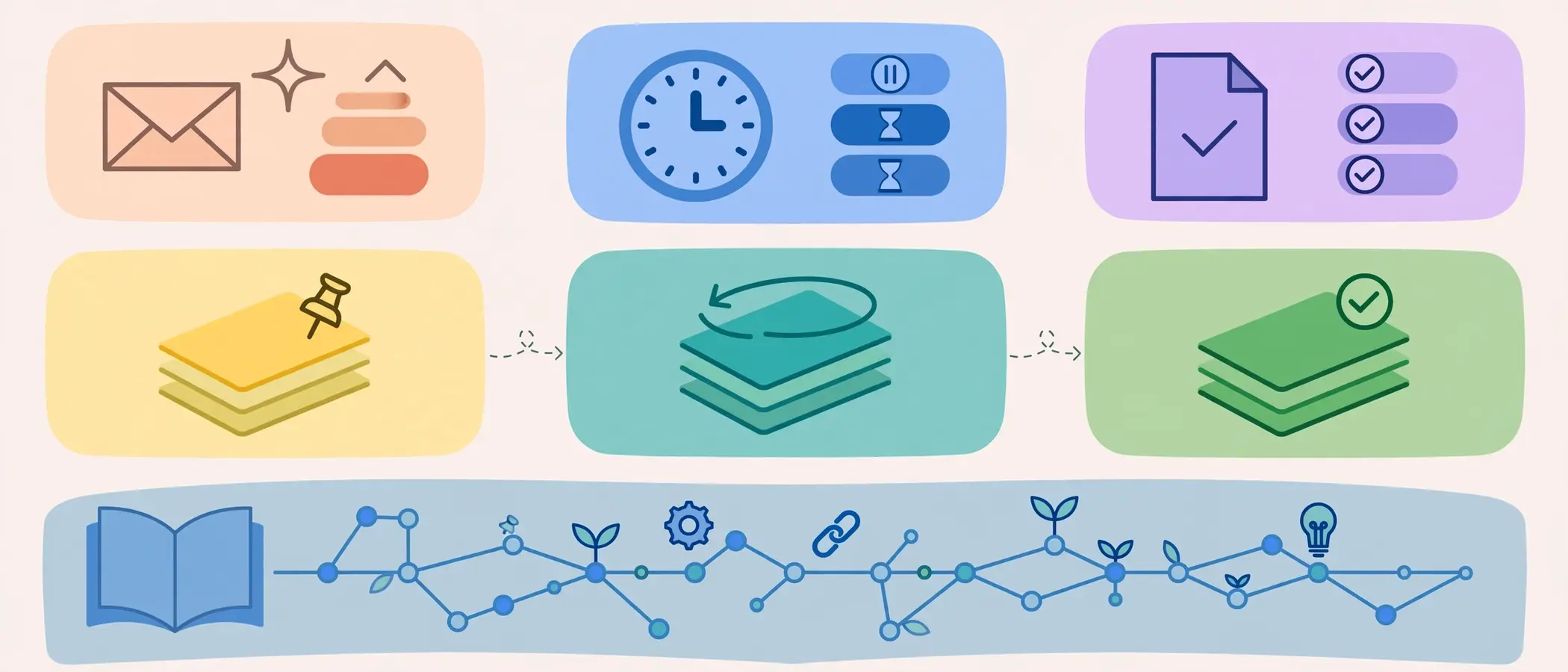
- Executive requests: Every ask, with owner, due date, and status.
- Recurring duties: Weekly reports, board prep, and monthly reviews.
- Waiting-on items: Replies and approvals pending from other people.
- Decisions log: What was decided, when, and by whom.
Build a Living Playbook
A playbook is a short, searchable document that records how the executive likes things done. Include:
- Communication preferences and tone for key contacts
- Travel preferences, loyalty numbers, and approval limits
- Meeting rules, such as no calls before 9 a.m.
- Standard operating procedures for recurring tasks
- An escalation list: who to contact, and when
Notably, a playbook protects continuity. If the EA takes leave or the executive adds a second assistant, nothing important disappears. Similarly, it speeds up the learning curve for any new team member.
Document, Presentation, and Research Tools
Executives expect polished output, not drafts that need rework. Therefore, the EA’s document stack should support fast formatting, version control, and secure sharing.
- Cloud documents: Real-time editing and comment history.
- Template library: Branded decks, memos, agendas, and briefing notes.
- E-signature: Faster contract and approval cycles.
- Research tools: Reliable sources, news alerts, and company-profile databases.
- Shared storage with permissions: Folder structure that mirrors the executive’s priorities.
Presentation work is a clear example. An EA who prepares board or investor decks needs templates, chart tools, and a review workflow. You can see how this looks in practice in this breakdown of how a virtual EA prepares investor-grade presentations.
CRM, Travel, and Expense Tools
Beyond the core stack, many executives need specialist tools. Add them only when the workflow requires them.
CRM and Contact Management
Executives with active relationships, such as investors, partners, and clients, benefit from a lightweight CRM. It records last contact dates, notes, and follow-up tasks. Related support roles lean on the same discipline; for example, a virtual PA handling lead follow-up and admin for real estate agents relies on a CRM to keep every conversation moving.
Travel Tools
- A single master itinerary per trip, shared with the executive
- Saved traveler profiles and loyalty numbers in the password manager
- Flight and hotel alerts for changes
Expense Tools
- Receipt capture by mobile photo
- Category rules that match accounting codes
- A weekly reconciliation rhythm, so month-end stays calm
Security and Access Controls
Executive assistants handle some of the most sensitive information in a company: contracts, financials, personal details, and travel plans. Consequently, security is not optional in any remote executive assistant work setup.
The Non-Negotiable Security Checklist
- Password manager: Share credentials through a vault, never through chat or email.
- Multi-factor authentication (MFA): Enable it on every account that supports it. The U.S. Cybersecurity and Infrastructure Security Agency publishes practical cybersecurity best practices that cover MFA, phishing, and updates.
- Delegate access over shared logins: Give each person their own identity and audit trail.
- Device encryption and auto-lock: Protect data if a laptop is lost.
- Secured network: Use a private home network with a strong passphrase; add a VPN on public Wi-Fi.
- Least-privilege access: Grant only the folders and accounts needed for the job.
- Offboarding plan: Revoke access the same day an engagement ends.
For teams on cloud suites, Google Workspace security features show how admin controls, encryption, and access policies fit together.
Phishing and Social Engineering
EAs are frequent targets because attackers know they act on the executive’s behalf. Train for these warning signs:
- Urgent payment requests that bypass normal approval
- “The CEO needs gift cards” style messages
- Unfamiliar links requesting a login
- Slight changes in a sender’s address
Meanwhile, create a rule: any financial or credential request is verified by a second channel, such as a quick call.
Workspace and Hardware Setup
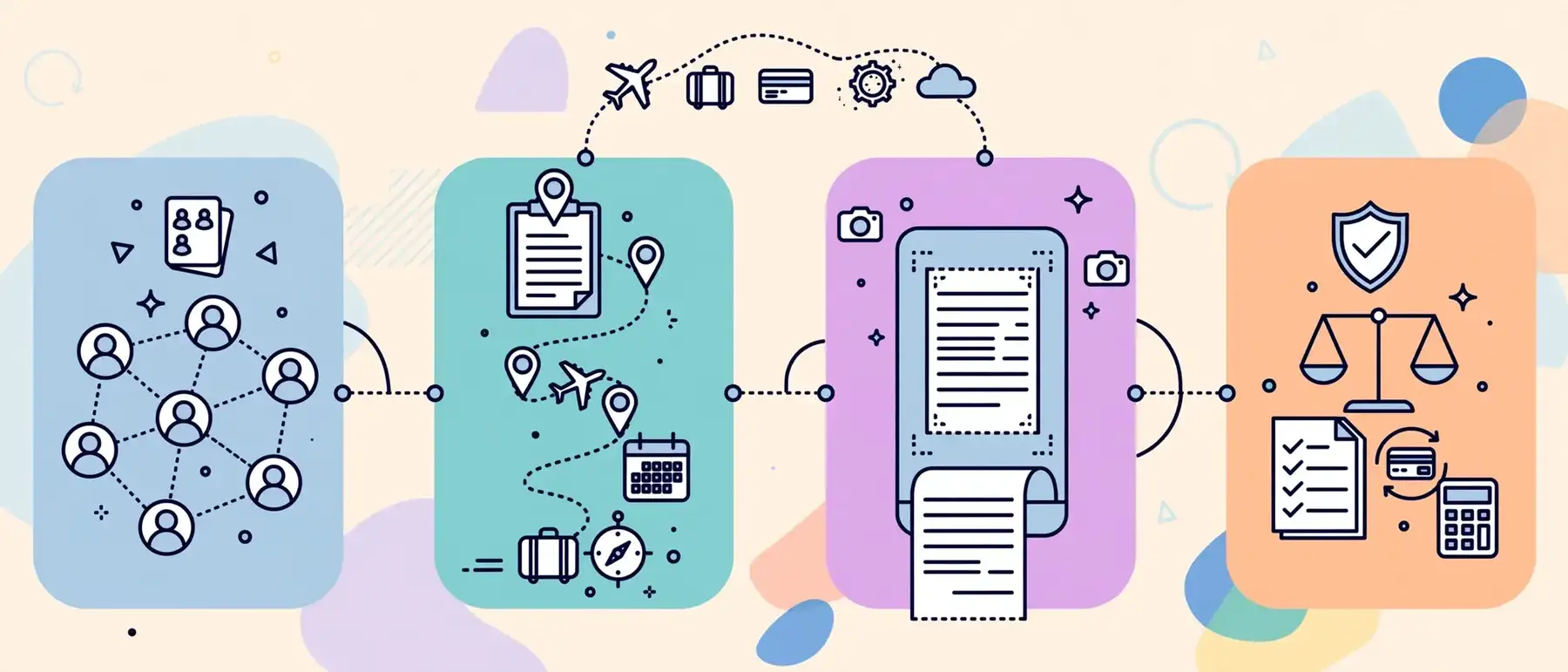
Software matters, yet the physical environment drives energy and focus across an eight-hour day. A dedicated workspace also signals professionalism on every video call.
Hardware Essentials
| Item | Recommended Standard | Why It Matters |
|---|---|---|
| Laptop | Recent business-grade, 16 GB RAM or more | Runs many apps and calls without lag |
| Second monitor | 24 to 27 inch, or dual monitors | Keeps calendar and inbox visible side by side |
| Headset | Noise-canceling with a boom microphone | Clear audio and fewer repeat questions |
| Webcam and lighting | 1080p webcam, soft front light | Professional presence on calls |
| Internet | Wired Ethernet plus a mobile hotspot backup | Protects against outages |
| Power backup | Uninterruptible power supply (UPS) | Prevents lost work in short outages |
| Chair and desk | Adjustable, supports neutral posture | Reduces fatigue and strain |
Ergonomics
The Occupational Safety and Health Administration provides clear guidance on setting up a computer workstation, including chair height, monitor position, and keyboard placement. In short, keep the top of the screen at or slightly below eye level and your feet flat on the floor.
Environment Rules
- Choose a quiet room with a door.
- Keep a neutral, tidy background.
- Separate work and personal devices where possible.
- Set clear working hours and communicate them.
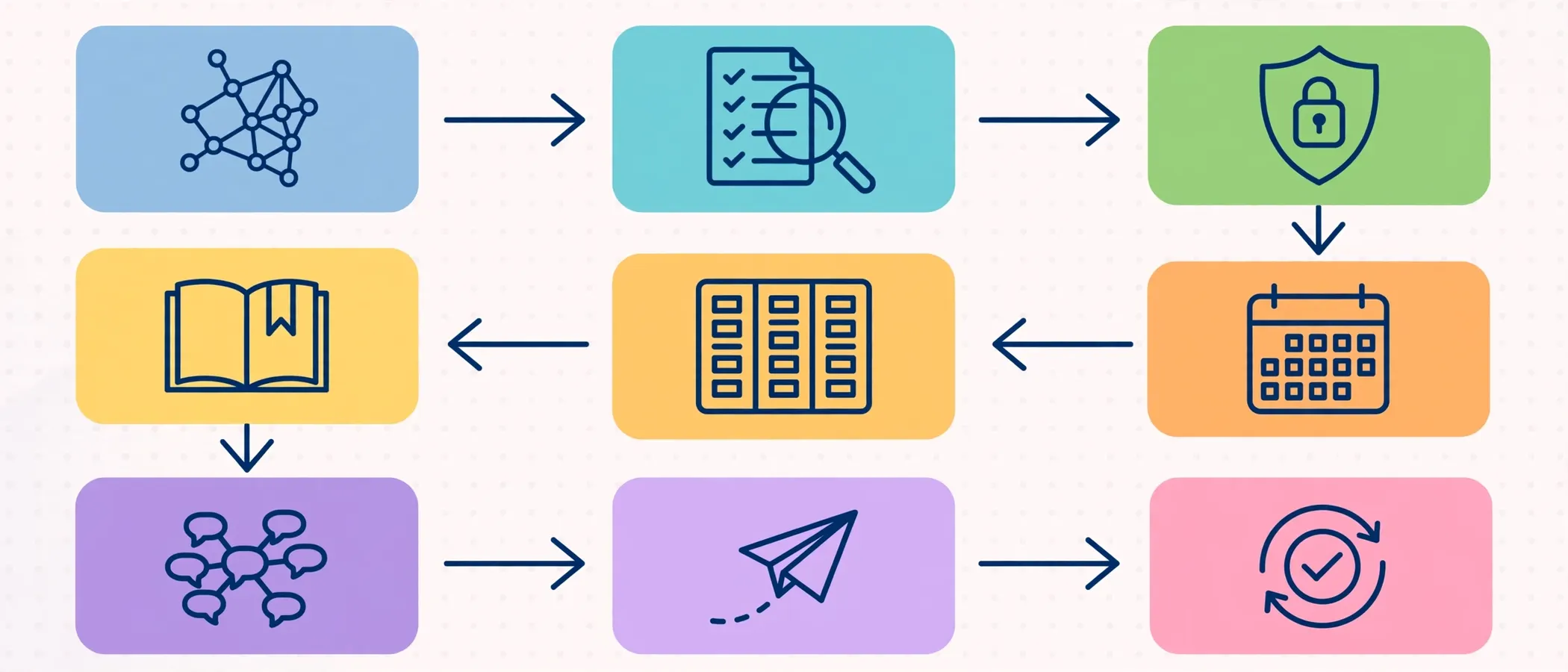
How to Build a Remote EA Setup: Step-by-Step
Follow this sequence to build a remote executive assistant work setup from scratch.
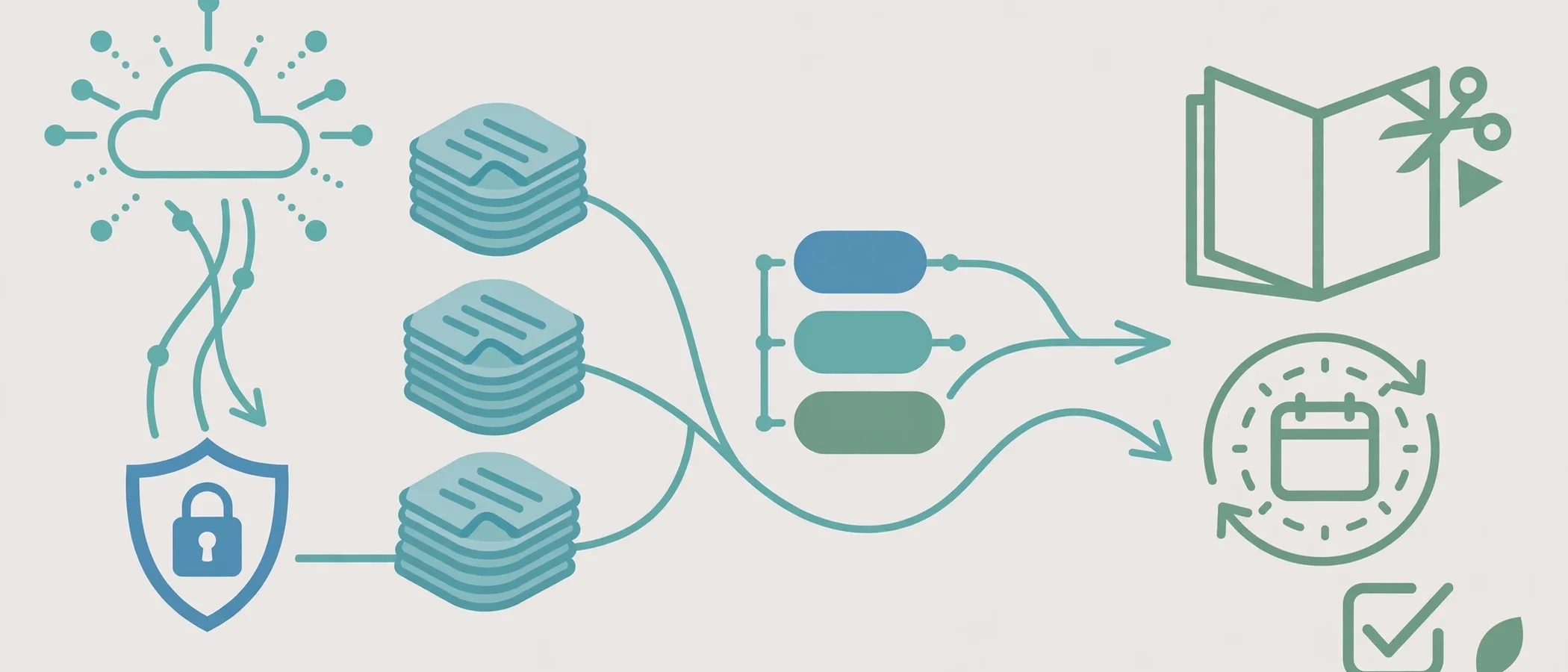
- Map the executive’s workflows. List recurring tasks such as inbox triage, scheduling, travel, expense reports, and board prep.
- Audit the existing tools. Keep what the executive already uses. Avoid adding platforms without a clear gain.
- Secure access first. Set up the password manager, MFA, and delegate permissions before anything else.
- Connect email and calendar. Configure delegate access, labels, color codes, and time zones.
- Create the task board. Add columns for Backlog, In Progress, Waiting, and Done.
- Write the playbook. Capture preferences, approval limits, and escalation rules.
- Set communication rules. Define channels, response times, and the daily sync.
- Prepare the physical workspace. Test internet speed, audio, lighting, and backup power.
- Run a two-week pilot. Track friction points and adjust.
- Review monthly. Remove unused tools and update the playbook.
Baseline vs. Executive-Grade Setup: Comparison
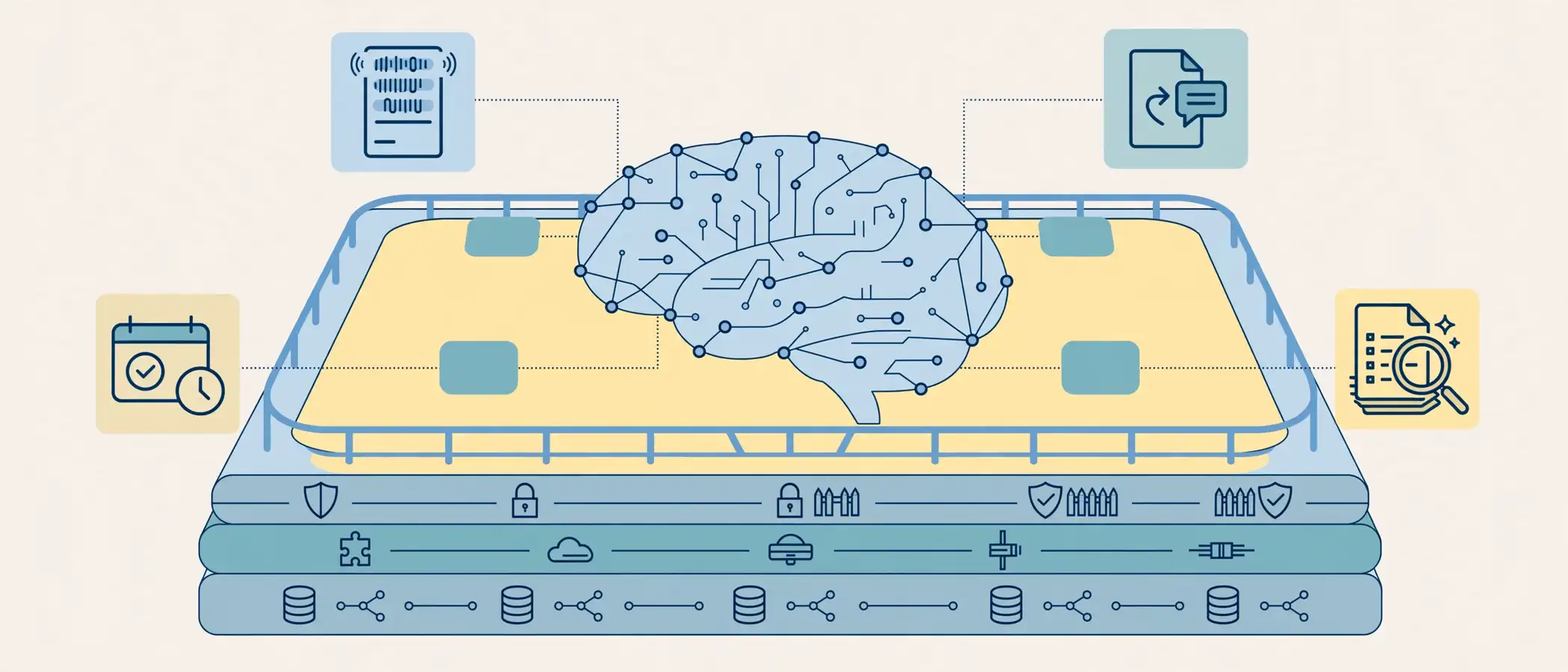
Use this table to see where a typical setup falls short and what an executive-grade standard looks like.
| Area | Baseline Setup | Executive-Grade Setup |
|---|---|---|
| Access | Shared logins by chat | Password vault, MFA, delegate access |
| Calendar | Manual, reactive | Rule-based, color-coded, buffered |
| Task tracking | Email threads | Shared board with owners and due dates |
| Knowledge | In the EA’s head | Living playbook and SOP library |
| Internet | Single home connection | Ethernet plus hotspot backup |
| Meetings | Unrecorded | Transcribed, with action items logged |
| Security habits | Ad hoc | Written policy with phishing drills |
| Handoffs | Slow, informal | Recorded walkthroughs and checklists |
Ultimately, the gap between the two columns is where most lost hours, missed meetings, and security incidents originate.
The AI Layer in a Modern EA Stack
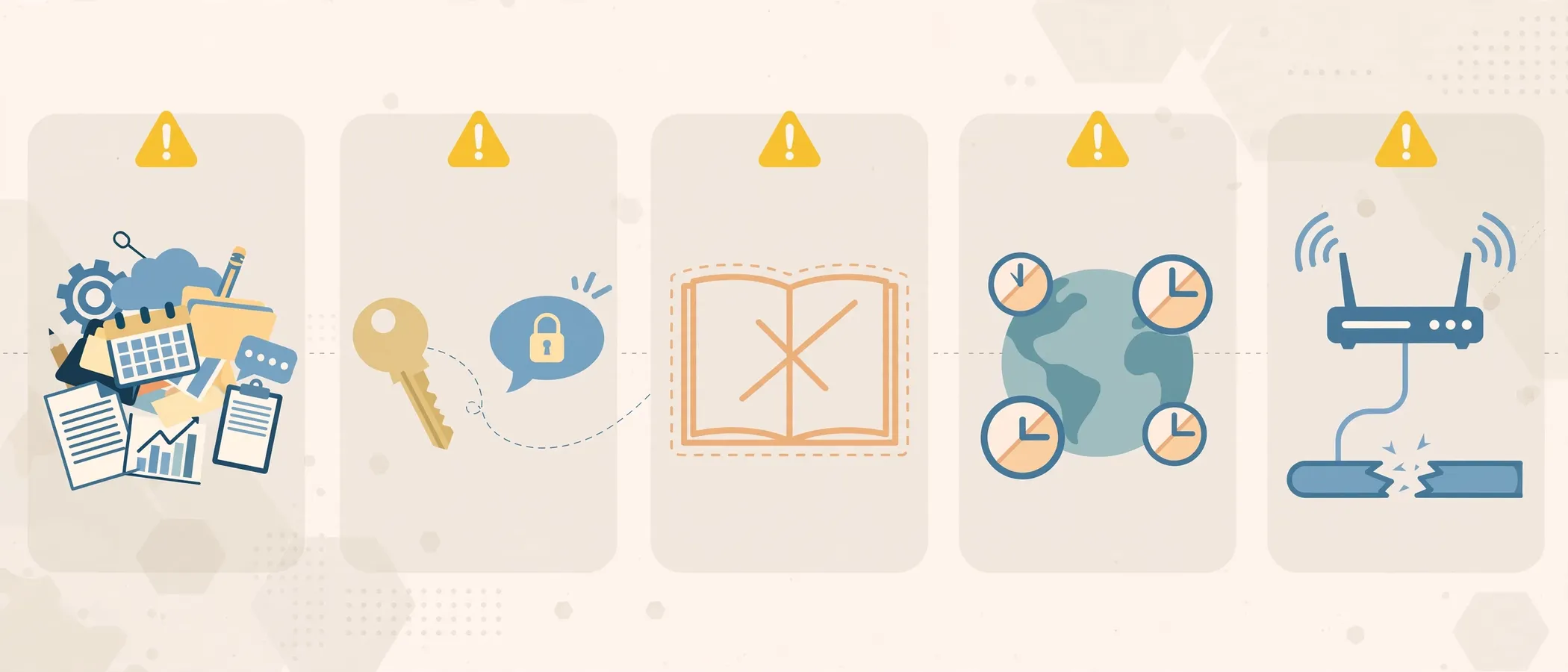
AI tools now handle first drafts, meeting summaries, research, and scheduling suggestions. They don’t replace judgment, but they free time for higher-value work.
Where AI Helps Most
- Meeting transcription and summaries: Faster follow-up and cleaner notes.
- Draft replies and briefs: A strong starting point for the EA to refine.
- Research digests: Quick overviews of companies, people, and news.
- Scheduling suggestions: Smarter slot selection across time zones.
Guardrails to Set
- Never paste confidential data into tools without an approved data policy.
- Review every AI output before it reaches the executive or a third party.
- Document which tasks AI supports and which stay fully human.
To understand how trained professionals use these tools responsibly, read about what an AI-trained virtual executive assistant actually does.
Common Mistakes to Avoid
Avoid these pitfalls when you design a remote executive assistant work setup:
- Too many tools. Every extra app adds logins, notifications, and training time. Consolidate wherever possible.
- Sharing passwords in chat. It creates risk and removes the audit trail.
- No written playbook. Knowledge stuck in one person’s head fails the first time that person is unavailable.
- Ignoring time zones. Always display both parties’ zones and confirm the zone in every invitation.
- Single point of failure for internet. One outage can derail a board call. Keep a backup connection.
- Skipping ergonomics. Poor posture lowers focus and raises long-term strain.
- Unclear approval limits. Without spending and decision thresholds, the EA either stalls or overreaches.
- No regular review. Tools and workflows drift. Schedule a monthly check.
Expert Tips
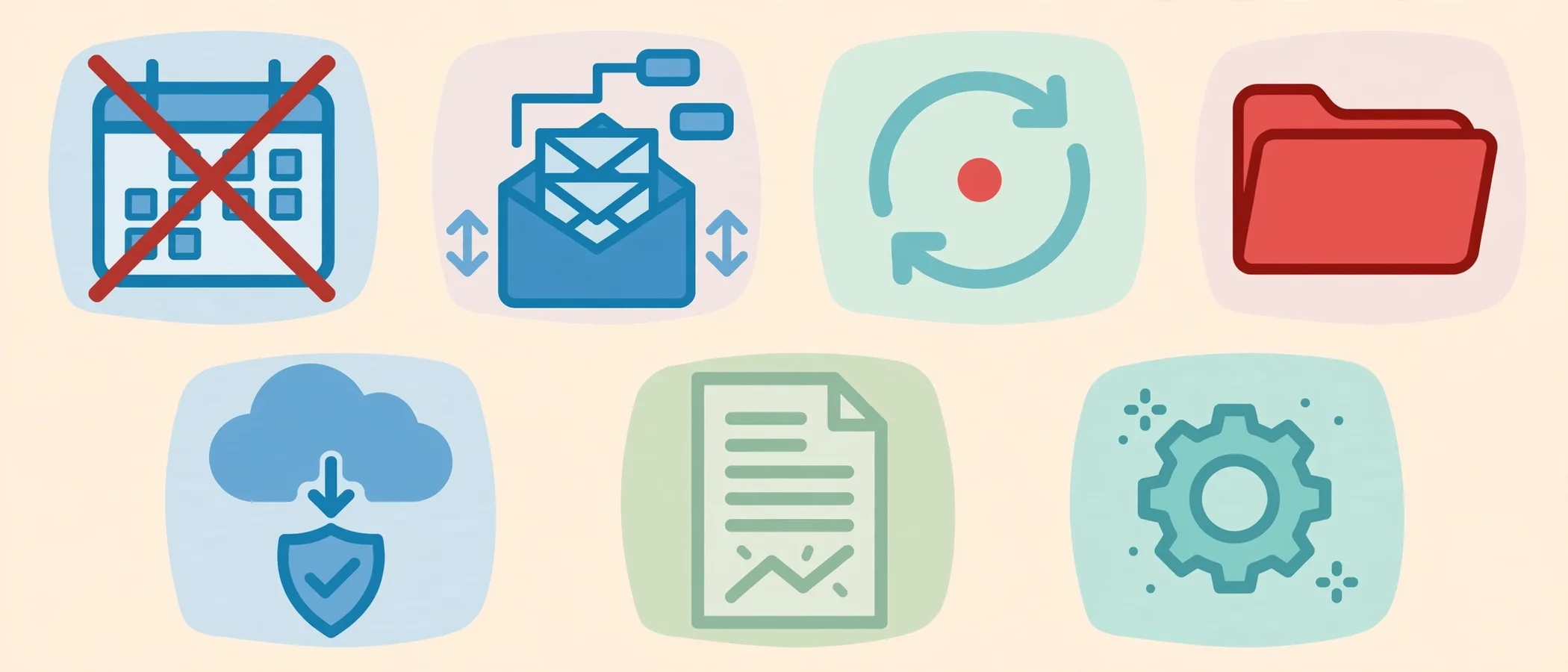
- Use a “default no” calendar rule. The EA declines low-value meetings unless the executive overrides.
- Batch inbox triage. Process email at set times, not constantly, to protect deep work.
- Record, don’t explain twice. Capture any repeated process on video once and store it in the playbook.
- Create a “red folder.” Keep a pinned list of urgent contacts and emergency procedures.
- Test the backup plan quarterly. Switch to the hotspot and confirm calls still run smoothly.
- Share a weekly one-page summary. List wins, pending items, and decisions needed. Executives value short, scannable updates.
- Automate the boring parts. Use email rules, templates, and recurring tasks for predictable work.
FAQ
What is the best remote executive assistant work setup?
The best remote executive assistant work setup includes a password manager with MFA, delegate access to email and calendar, a shared task board, a living playbook, a dual-monitor workstation, and a wired internet connection with a backup. Tool brands matter less than consistency and security.
What tools does a remote executive assistant need?
A remote EA needs an email and calendar suite, chat and video software, a task manager, a password manager, cloud document storage, and an e-signature tool. Specialized needs may add a CRM, travel booking, expense software, and an AI meeting assistant.
How do I keep a remote executive assistant’s access secure?
Use delegate access instead of shared passwords, enable MFA everywhere, store credentials in a vault, apply least-privilege permissions, and revoke access immediately when the engagement ends. Also train the EA to verify unusual payment or login requests through a second channel.
What hardware should a remote EA use at home?
Choose a business-grade laptop, a second monitor, a noise-canceling headset, a 1080p webcam with soft lighting, wired Ethernet with a mobile hotspot backup, and an ergonomic chair. A UPS adds protection against short power cuts.
How much does a good remote EA setup cost?
Software costs vary by team size and plan. Most tools in the core stack run from free tiers to modest per-user monthly fees, and the hardware is typically a one-time investment. For a broader view of engagement pricing, see this virtual executive assistant cost breakdown.
How long does it take to set up a remote executive assistant?
A focused setup of access, calendar, task board, and playbook typically takes one to two weeks, followed by a short pilot to refine the workflow. Executives with clear preferences and existing tools usually move faster.
Should a remote EA use AI tools?
Yes, when guardrails are in place. AI helps with transcription, drafting, and research. The EA still reviews every output, and confidential information stays within approved tools.
Conclusion
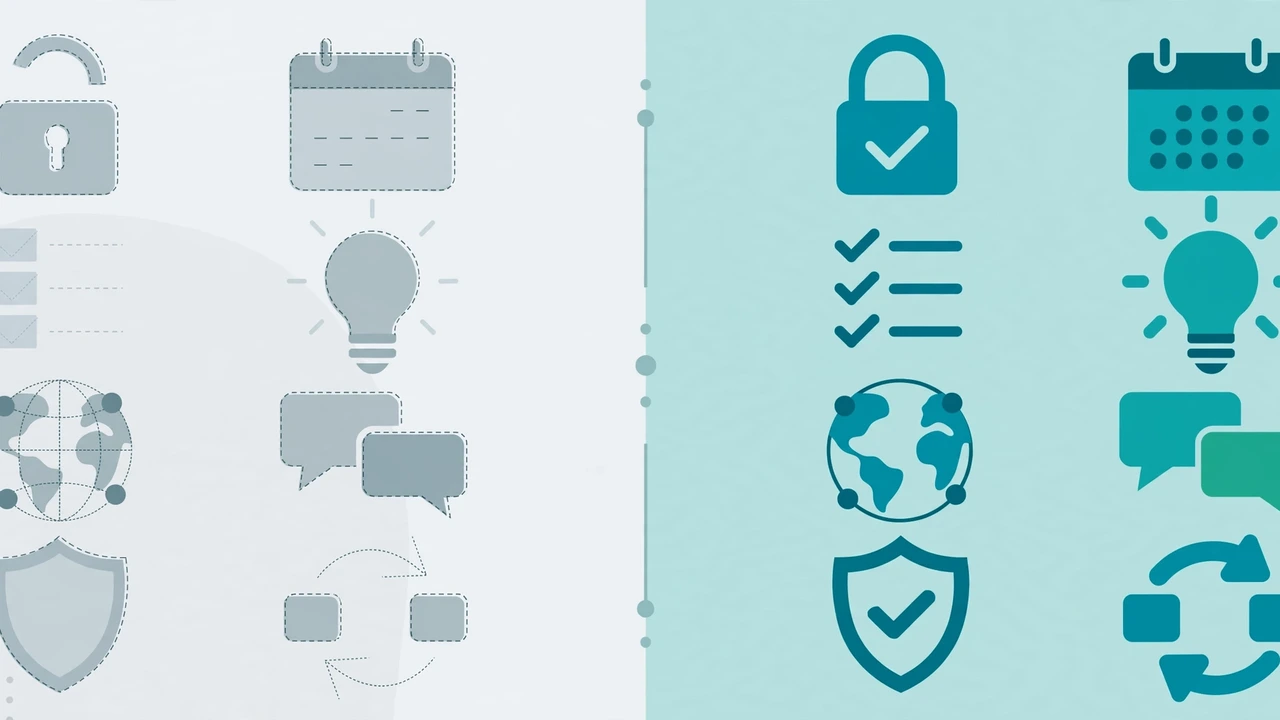
A strong remote executive assistant work setup is not about owning the most tools. It is about building a secure, simple, and documented system where the executive’s priorities flow cleanly to the person executing them. Start with security, connect the calendar and inbox, add a shared task board and playbook, and support it all with an ergonomic workspace and reliable internet.
Review the setup monthly, trim what no longer earns its place, and keep the playbook current. Do that consistently, and the assistant becomes a dependable partner who protects the executive’s time every single day.
Ready to put a proven system to work? Hire a virtual executive assistant who arrives fully equipped and reclaim your leadership hours with GPERO.